Authentication
It is possible to allow only authenticated users to create new conference rooms. Whenever a new room is about to be created, Jitsi Meet will prompt for a user name and password. After the room is created, others will be able to join from anonymous domain. Here's what has to be configured:
Keycloak install and configure
Install docker and prepare keycloak user.
curl -fsSL https://download.docker.com/linux/ubuntu/gpg -o /etc/apt/keyrings/docker.asc
sudo chmod a+r /etc/apt/keyrings/docker.asc

sudo tee /etc/apt/sources.list.d/docker.sources <<EOF
Types: deb
URIs: https://download.docker.com/linux/ubuntu
Suites: $(. /etc/os-release && echo "${UBUNTU_CODENAME:-$VERSION_CODENAME}")
Components: stable
Signed-By: /etc/apt/keyrings/docker.asc
EOF
apt update

apt install docker-ce docker-ce-cli containerd.io docker-buildx-plugin docker-compose-plugin
systemctl start docker

sudo useradd -r -m -s /bin/bash keycloak
sudo usermod -aG docker keycloak
sudo mkdir -p /home/keycloak/keycloak-data
sudo chown -R keycloak:keycloak /home/keycloak/keycloak-data
sudo su - keycloak
Create .env file. Fill in your host and admin password:
KC_VERSION=26.2.3
KEYCLOAK_ADMIN_PASSWORD=admin
Create Dockerfile:
ARG KC_VERSION

FROM quay.io/keycloak/keycloak:${KC_VERSION} AS builder

ARG KC_VERSION
RUN /opt/keycloak/bin/kc.sh build

FROM quay.io/keycloak/keycloak:${KC_VERSION}
COPY --from=builder /opt/keycloak/ /opt/keycloak/

ENTRYPOINT ["/opt/keycloak/bin/kc.sh", "start", "--optimized"]
And docker-compose.yml file:
services:
  keycloak:
    build:
      context: .
      args:
        - KC_VERSION=${KC_VERSION}
    container_name: keycloak
    environment:
      - KC_HTTP_ENABLED=true
      - KC_HOSTNAME_STRICT=false
      - KC_PROXY=edge
      - KEYCLOAK_ADMIN=admin
      - KEYCLOAK_ADMIN_PASSWORD=${KEYCLOAK_ADMIN_PASSWORD}
    volumes:
      - ./keycloak-data:/opt/keycloak/data
    ports:
      - "18080:8080"
    restart: unless-stopped
Start it:
docker compose up -d --build
_Note that if for some reason you cannot use docker you can follow this guide.
Open the Keycloak admin console at http://localhost:18080/admin/. If you are running Keycloak on a remote machine you can use ssh port forwarding to access the admin console, for example:
ssh -L18080:localhost:8080 user@remote-machine
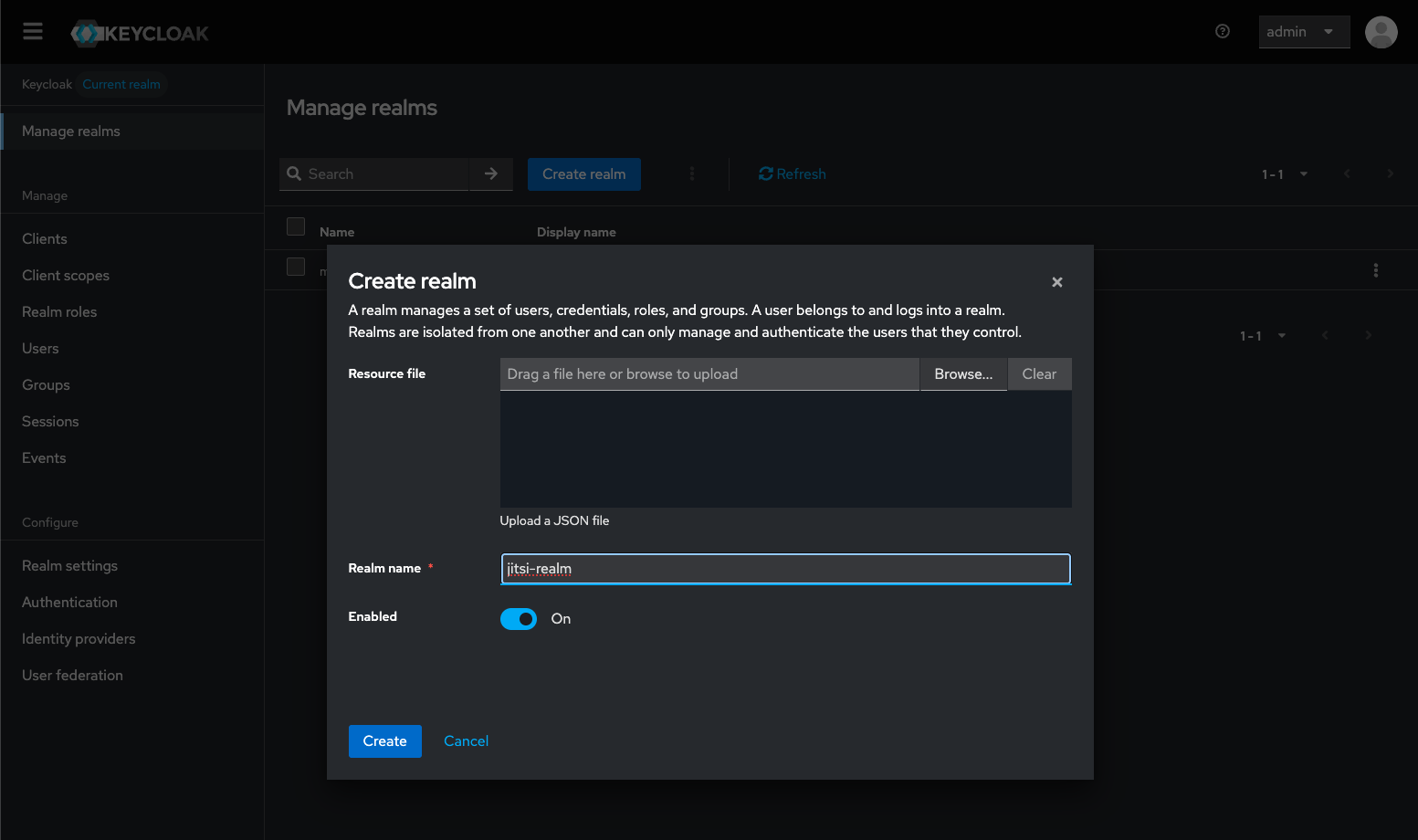
You need to create a realm, name it jitsi-realm, and select it.
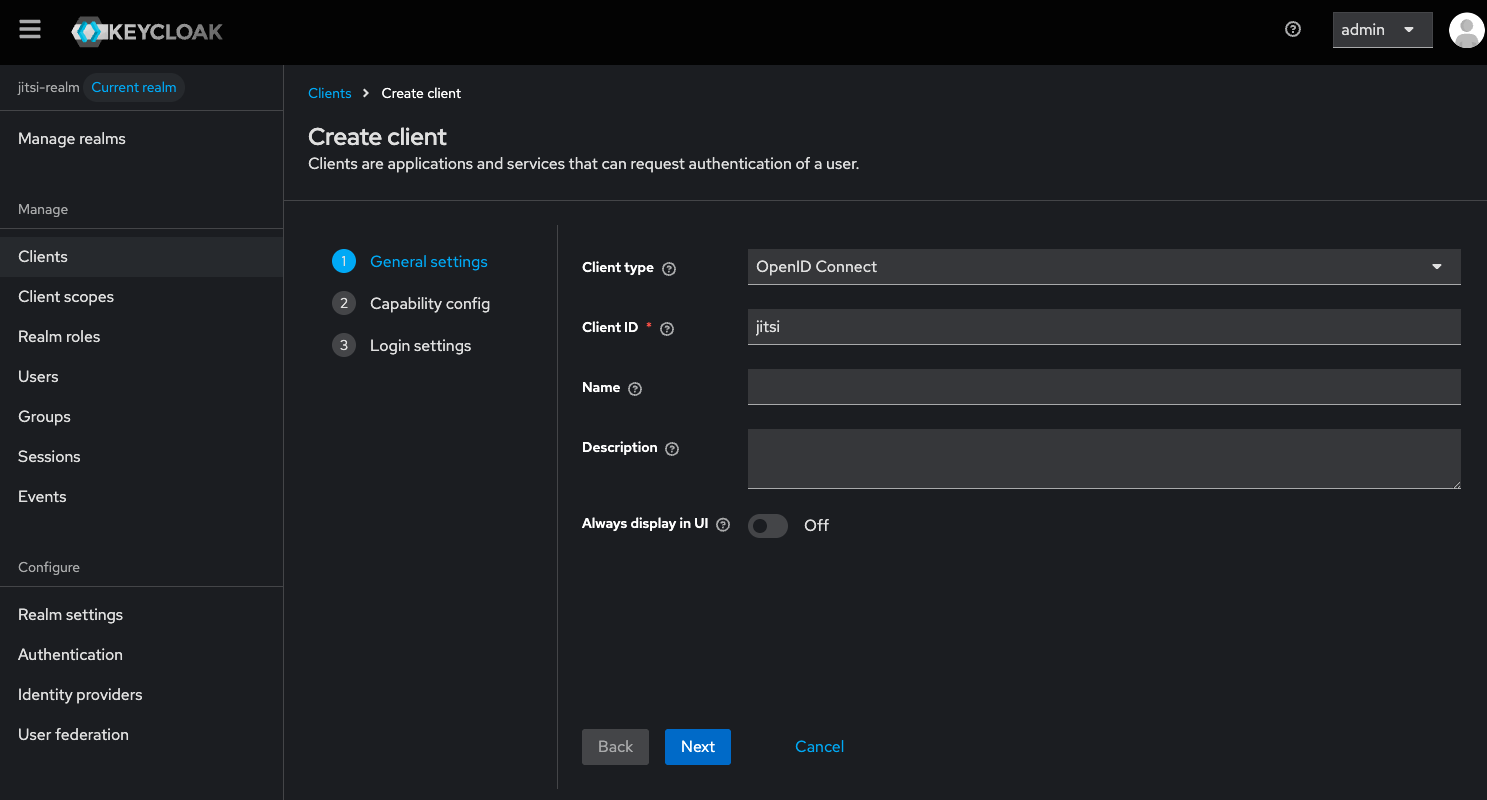
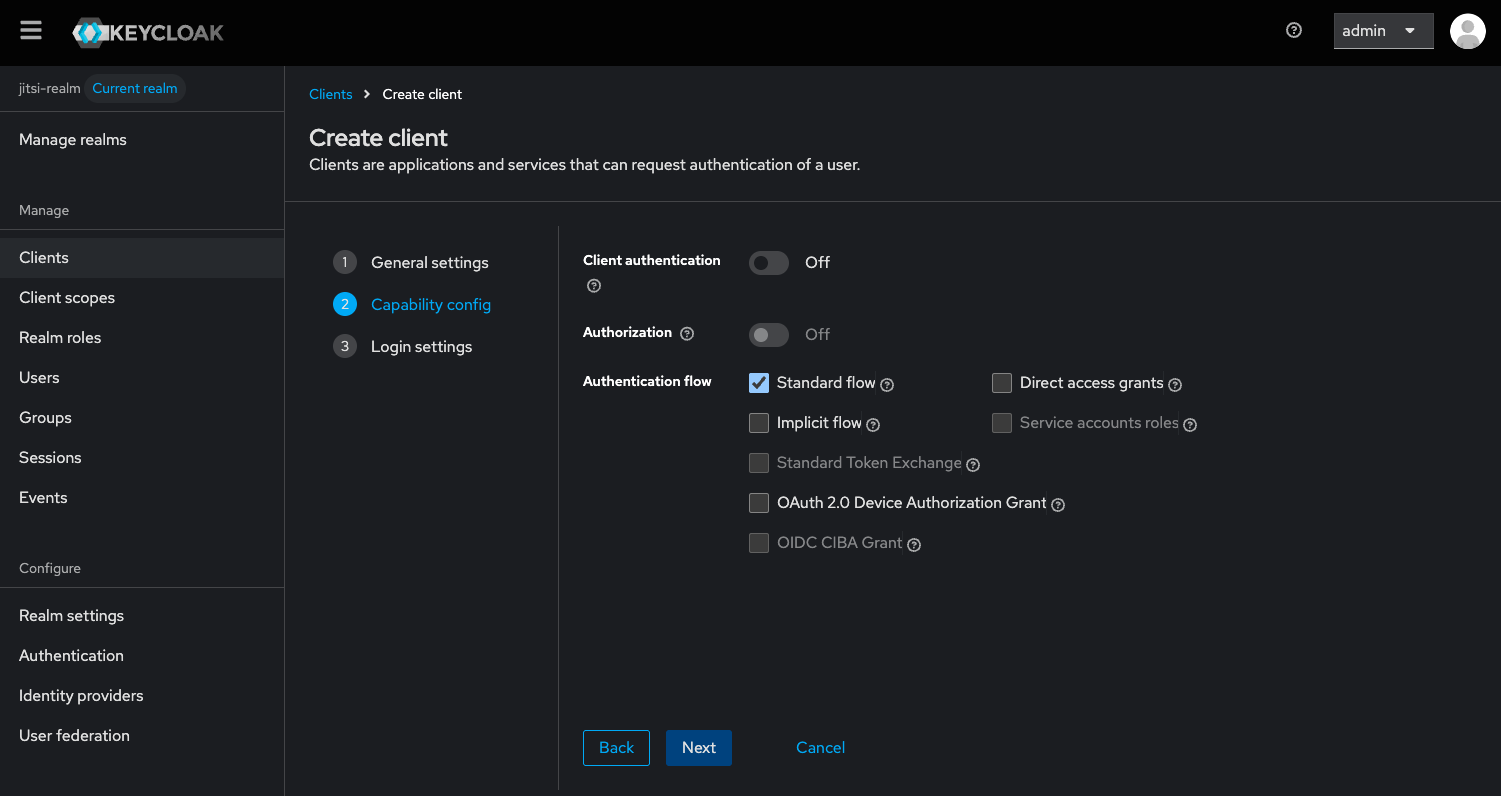
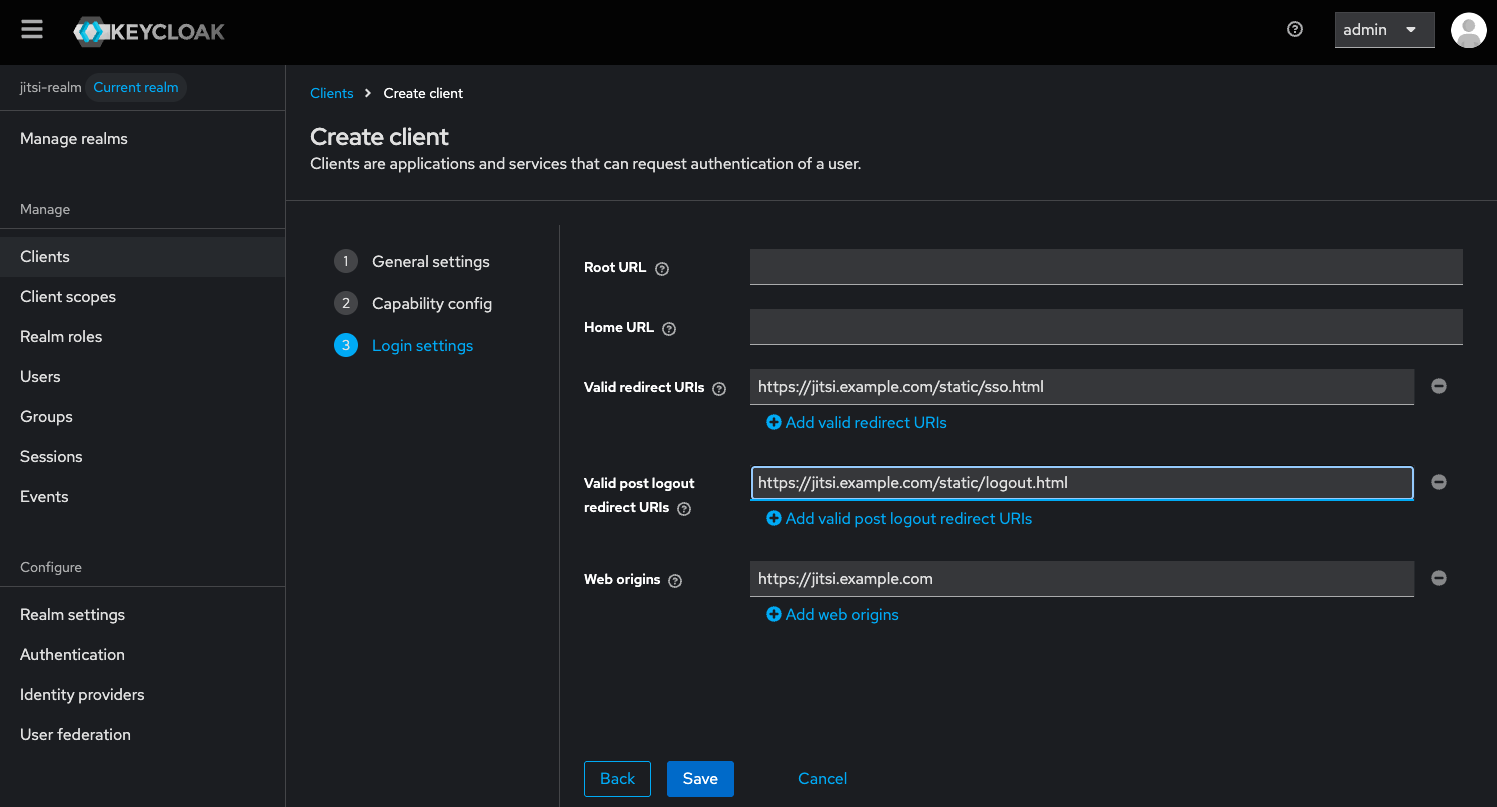
Add new client in the realm, name it jitsi. When creating the client make sure you set for "Valid Redirect URIs":
https://jitsi.example.com/static/sso.html and for "Valid post logout redirect URIs": https://jitsi.example.com/static/logout.html.
And for "Web origins": https://jitsi.example.com. Replace jitsi.example.com with your own hostname.
In your nginx configuration for jitsi, you need to add the following lines to the server block somewhere before /xmpp-websocket:
   location ~ ^/realms/(.*) {
        proxy_pass http://localhost:18080; # Or your Keycloak instance address
        proxy_set_header Host $host;
        proxy_set_header X-Real-IP $remote_addr;
        proxy_set_header X-Forwarded-For $proxy_add_x_forwarded_for;
        proxy_set_header X-Forwarded-Proto $scheme;
    }
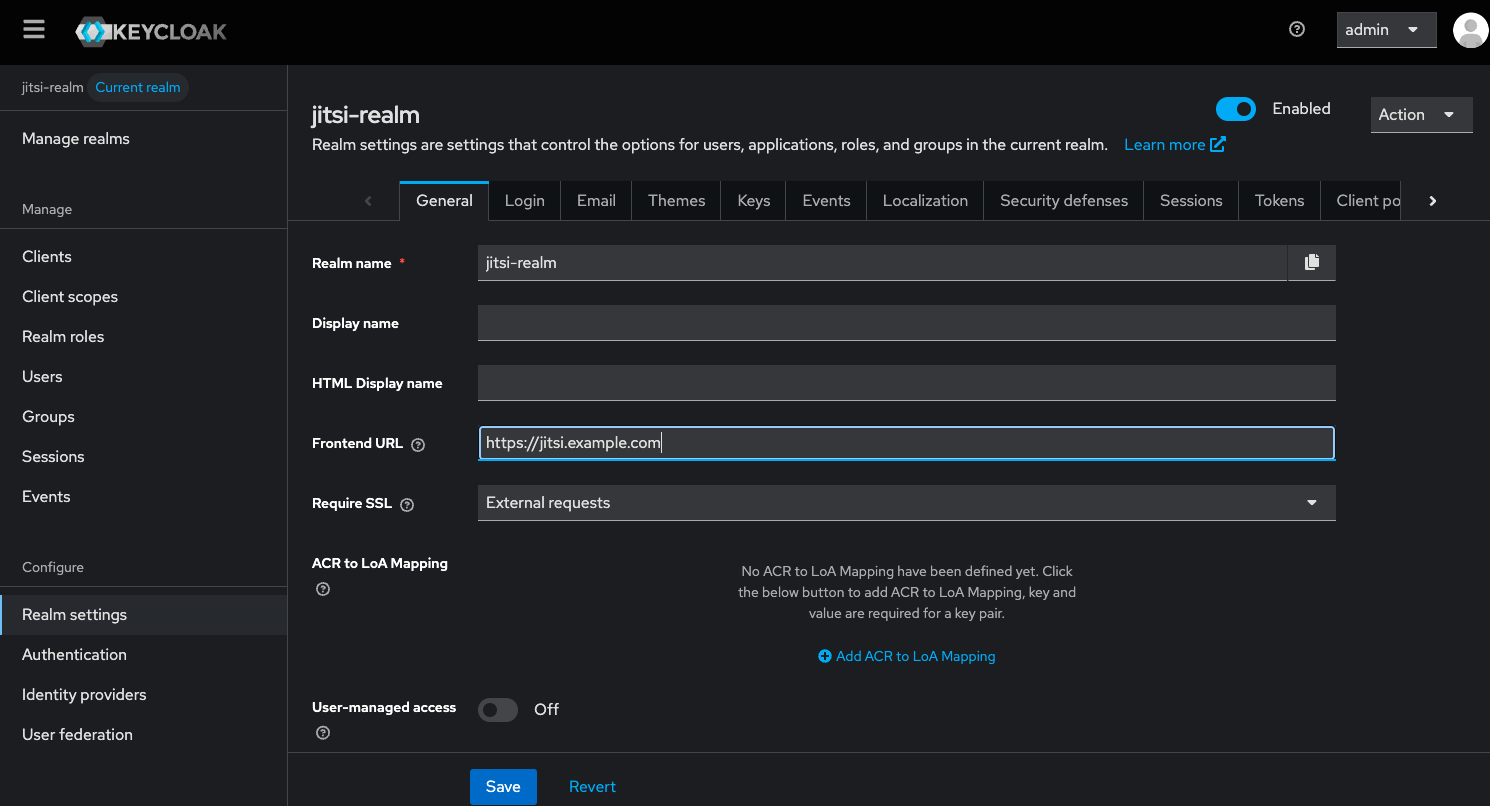
Go to "Realm Settings" → "General tab" and for "Frontend URL" set https://jitsi.example.com. Replace jitsi.example.com with your own hostname.
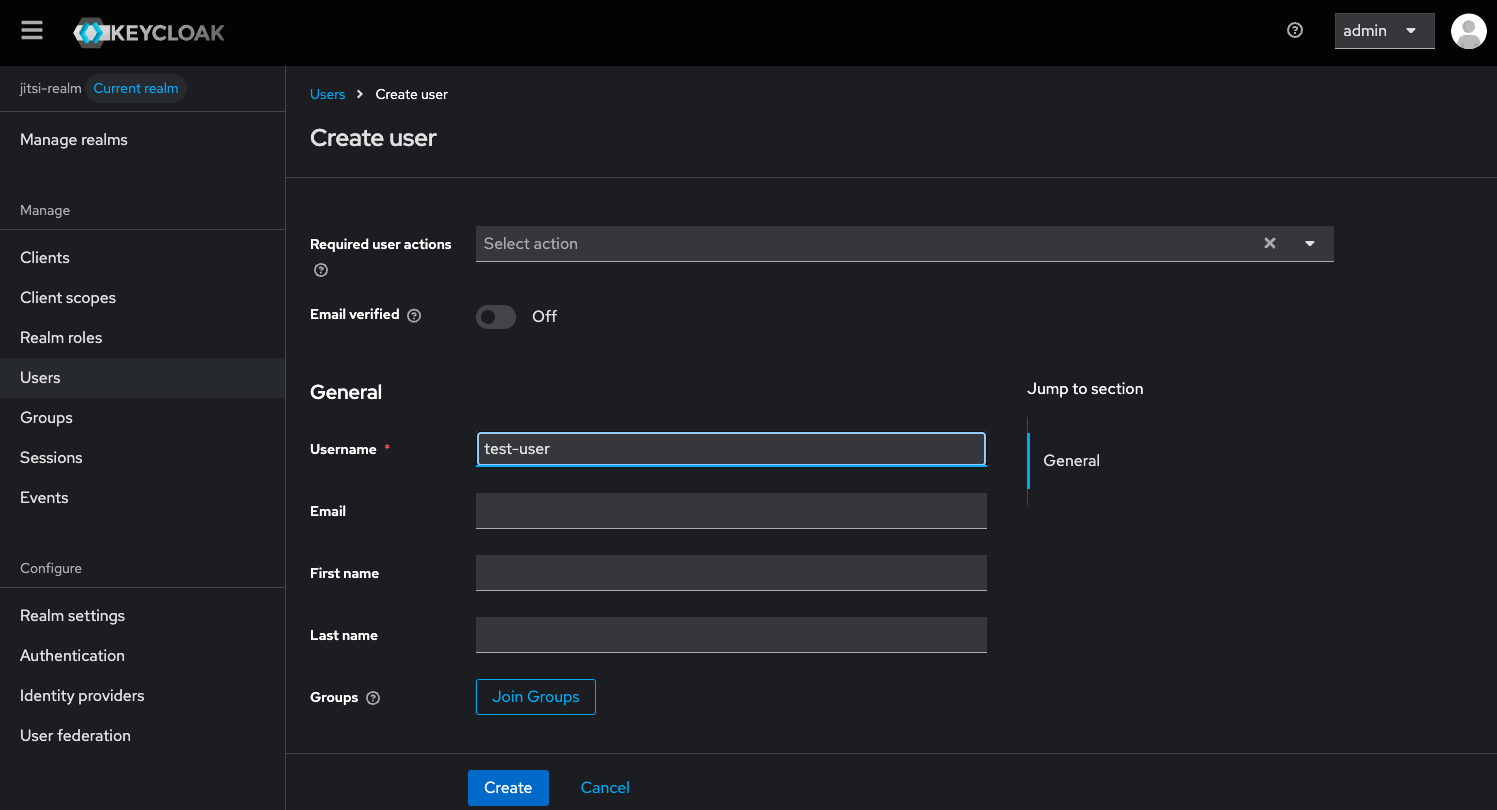
In "Users" create a new user. After creating the user, go to "Credentials" tab of the user and set a password for the user. You will need it later.
More information about keycloak and running it with docker can be found in the official documentation: https://www.keycloak.org/getting-started/getting-started-docker
Prosody configuration
If you have installed Jitsi Meet from the Debian package, these changes should
be made in /etc/prosody/conf.avail/[your-hostname].cfg.lua
In the example below, this hostname is assumed to be jitsi.example.com. Update
this value according to your own hostname.
Enable authentication
Inside the VirtualHost "[your-hostname]" section, replace anonymous
authentication with token authentication:
asap_accepted_issuers = { "https://jitsi.example.com/realms/jitsi-realm" }
asap_accepted_audiences = { "account" }
asap_require_room_claim = false;

VirtualHost "jitsi.example.com"
    authentication = "token"
    app_id = "jitsi"
    allow_empty_token = false
    cache_keys_url = "https://jitsi.example.com/realms/jitsi-realm/protocol/openid-connect/certs"
You will see your own hostname instead of jitsi.example.com in your config
file.
Enable anonymous login for guests
Add this section after the previous VirtualHost to enable the anonymous login method for guests:
VirtualHost "guest.jitsi.example.com"
    authentication = "jitsi-anonymous"
    c2s_require_encryption = false
    modules_enabled = {
        "smacks";
    }
Note that guest.jitsi.example.com is internal to Jitsi, and you do not need
to (and should not) create a DNS record for it, or generate an SSL/TLS
certificate, or do any web server configuration. While it is internal, you
should still replace jitsi.example.com with your hostname.
Enable wait for host module
Enable the wait_for_host module under the main muc component and enable persistent_lobby
VirtualHost "jitsi.example.com"
    authentication = "token"
    ...
    modules_enabled = {
        ...
        "persistent_lobby";
        ...
    }

Component "conference.jitsi.example.com" "muc"`
    modules_enabled = {
        ...
        "muc_wait_for_host";
        ...
    }
Jitsi Meet configuration
In config.js, the anonymousdomain options has to be set.
If you have installed jitsi-meet from the Debian package, these changes should
be made in /etc/jitsi/meet/[your-hostname]-config.js.
var config = {
    hosts: {
        domain: 'jitsi.example.com',
        anonymousdomain: 'guest.jitsi.example.com',
        // ...
    },
    // ...
}
You will see your own hostname instead of jitsi.example.com in your config
file. You should add only the anonymousdomain line. Be careful of commas.
Set the token authentication URLs in the same file at the end append:
config.tokenAuthUrl='https://'+ config.hosts.domain + '/realms/jitsi-realm/protocol/openid-connect/auth?client_id=jitsi&response_type=code&scope=openid&state={state}&redirect_uri=https://'+ config.hosts.domain + '/static/sso.html&code_challenge={code_challenge}&code_challenge_method=S256';
config.tokenLogoutUrl='https://'+ config.hosts.domain + '/realms/jitsi-realm/protocol/openid-connect/logout?post_logout_redirect_uri=https://'+ config.hosts.domain + '/static/logout.html';
config.tokenAuthInline=true;
config.sso={ ssoService: config.hosts.domain, tokenService: config.hosts.domain + '/realms/jitsi-realm/protocol/openid-connect', clientId: "jitsi" };
Restart the services
Restart prosody and nginx as root.
systemctl restart prosody
systemctl restart nginx